Short answer
When IPTV stops working, test the same login on a second device first: if it plays there, the problem is your TV, app or Wi-Fi; if it fails everywhere on an active line, it is the server or the line. Then work through the quick fixes in order: check the expiry date, restart the app and device, reboot the router, clear the cache, switch the decoder, use a cable. Most problems are solved before step five. If not, send support the channel, time and device.
There is a particular kind of frustration reserved for a channel list that will not load ten minutes before kick-off. The instinct is to reinstall everything or assume the service has died. Both are usually wrong. The vast majority of “IPTV is down” moments are local, take a couple of minutes to fix, and leave a clear trail if you know where to look. This is the order to look in.
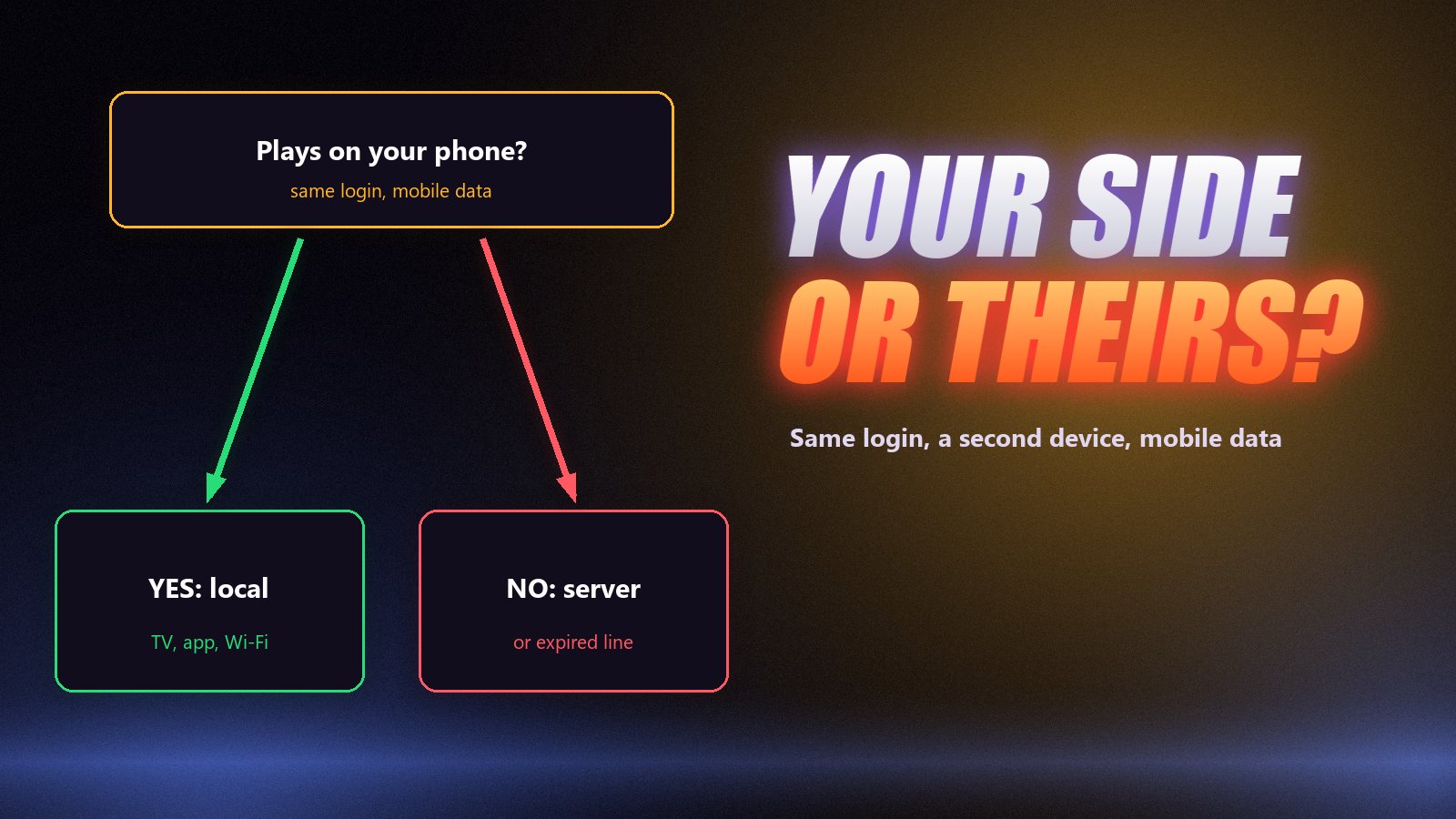
The Two-Minute Test: Your Side or Theirs?
Install a player on your phone, enter the same login, and play the channel that failed. Then switch the phone from Wi-Fi to mobile data and play it again. The results point straight at the cause:
| Result | What it means | Where to look |
|---|---|---|
| Phone plays, TV does not | Line and server are fine | TV, its app or its Wi-Fi |
| Fails on Wi-Fi, plays on mobile data | Your home network or internet provider | Router, ISP blocking |
| Fails everywhere, line active | Server or line problem | Support |
| Fails everywhere, line expired | Subscription ended | Renew on the pricing page |
| Only a few channels fail | Those source feeds are down | Try another version, report it |
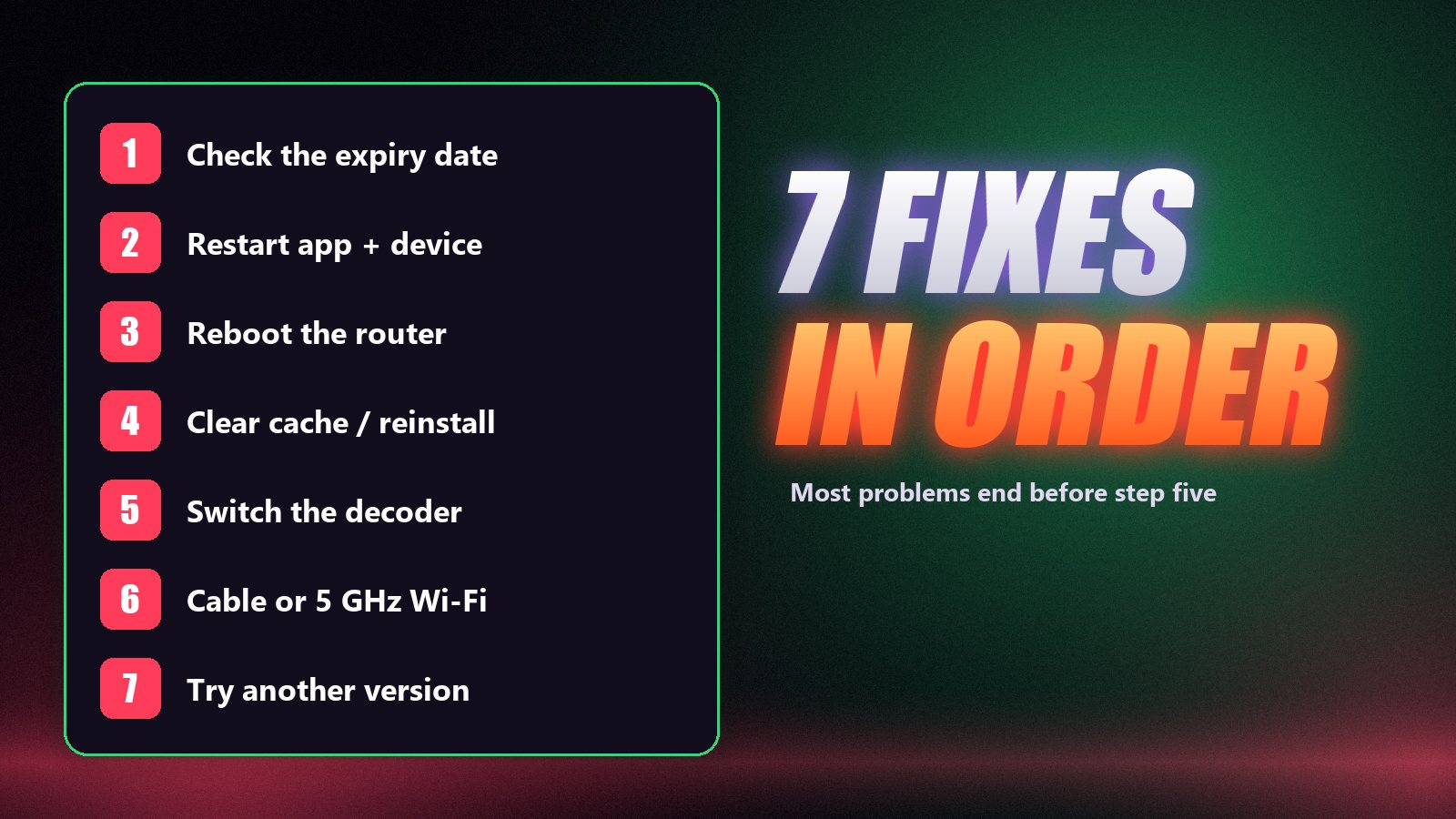
Seven Fixes, Cheapest First
- Check the expiry date. Most players show it under Account or User Info. An expired line looks exactly like a broken service.
- Restart the app and the device properly. Close the app fully, then restart the device: hold Select + Play on a Firestick, or unplug the TV for a full minute.
- Reboot the router. Thirty seconds unplugged clears a sluggish router and gives you a fresh route to the servers.
- Clear the cache, or reinstall. Old playlists and guide files corrupt after app updates. Clear the app’s cache, and if the list still will not load, reinstall and enter the login again.
- Switch the decoder. Black picture with sound, green blocks or stutter on 4K usually means a decoder mismatch. Flip between hardware and software decoding in the player settings.
- Use a cable or 5 GHz Wi-Fi. Weak 2.4 GHz Wi-Fi is the biggest single cause of evening freezing. Our buffering guide explains why.
- Try another version of the channel. Many channels exist in 4K, FHD and HD. If one freezes, the next may hold.
Common Error Messages Decoded
| Error | Usual cause | What to do |
|---|---|---|
| Invalid username or password | Typo, wrong server address, or expired line | Re-type the details exactly; check the expiry |
| Max connections reached | Another screen is streaming on the same line | Stop it, wait a minute; see multiple devices |
| Loading forever, then nothing | Playlist too large for the app, or no response from the server | Reload the playlist; test on the phone |
| Black screen with sound | Decoder mismatch | Switch hardware / software decoder |
| Guide says “No information” | EPG not loaded | Refresh the EPG in the app settings |
| 403 / 404 / 503 on every channel | Line blocked, moved or server down | Send the code to support |
If It Only Fails in the Evening
IPTV that works all day and stutters from 7 to 11 p.m. points at congestion: either your home network is crowded when everyone is home, or your internet provider is slowing video traffic. Test on a cable first. If a wired TV still stutters only at peak time and a phone on mobile data does not, your provider may be throttling, and a good VPN on a nearby server is worth testing; we cover how in do you need a VPN for IPTV.
Device-Specific Help
Every platform has its quirks. Firestick owners should start with the troubleshooting section of our Firestick guide, Samsung and LG owners with IPTV on a Smart TV, and anyone watching on a laptop with IPTV on PC or Mac. For a fresh install from scratch, our setup guide covers every device.
When to Contact Support
If the line is active and it fails on every device and network, it is our job, not yours. IPPlayTV support answers 24/7 on WhatsApp, and a line with repeated problems can be moved to another server node in minutes. Send the channel name, the time, the device and a photo of any error, and you will skip the back-and-forth.
Frequently Asked Questions
Why is my IPTV not working today?
Most often because the line has expired, the app or device needs a restart, the router has slowed down, or the Wi-Fi is struggling in the evening. Check the expiry date in the app, restart the device and the router, then test the same login on a phone. If it fails everywhere on an active line, contact support.
How can I tell if the IPTV server is down?
Try the same login on a second device, and then on mobile data instead of your Wi-Fi. If it fails on every device and network while the account shows as active, the problem is on the server side. If it works anywhere else, the fault is local.
Why does IPTV work on my phone but not on my TV?
Then your line and the server are fine, and the TV, its app or its Wi-Fi is the problem. Restart the TV, clear the app cache or reinstall it, switch the decoder setting and use an Ethernet cable if you can.
Why do only some channels not work?
Individual channels drop when their source feed changes or fails. It is normal and usually fixed within hours. Try another version of the channel, reload the playlist, and report the channel name to support so it can be fixed faster.
Can my internet provider block IPTV?
Some internet providers block or slow certain servers, often in the evening. If IPTV fails at home but works on mobile data, ask your IPTV provider for an alternative server address; a good VPN on a nearby server can also help in that situation.
What should I send to support?
The channel name, the time, the device and app, whether it happens on other devices, and a photo of any error. Specific reports get fixed in minutes; “it doesn’t work” gets questions back.
A line that works, and people who answer when it does not.
80,000+ live channels and 270,000+ titles on anti-freeze servers, 24/7 WhatsApp support, a free trial and a 7-day money-back guarantee on every plan.